Showing posts with label Lightning Datatable. Show all posts

Wednesday, 12 August 2020

Lightning Datatable Sorting in Lightning Web Components

Last time we talk about Lightning Datatable in Lightning Web Components (LWC). In this post we will talk about lightning datatable example with sorting in lightning web components. We can achieve the column sorting with the help of onsort attribute in datatable.

Lightning-datatable

Lightning datatable provides an onsort attribute which allow us to implement the sorting in lightning datatable. To enable the sorting on row you need to set sortable to true for the column and set sorted-By to match the fieldName attribute on the column. 


Use onsort event handler to update the table with the new column index and sort direction. The sort event returns the following parameter.
  1. fieldName : The fieldName that controls the sorting.
  2. sortDirection : The sorting direction. Valid options include 'asc' and 'desc'.

We can implement the sorting in LWC with following ways :-
  1. sorting locally 
  2. via apex call.

Local Sorting


We mostly implement this type of sorting when we know data elements in lightning datatable is small and limited

  1. Create Apex Class : To select certain contacts using SOQL, use an Apex method. Check this post to learn about how to Call Apex Methods in LWC.
    LWCDataTableSortingExample
    public with sharing class LWCDataTableSortingExample {
        @AuraEnabled(Cacheable=true)
        public static List <Contact> getContacts() {
            List<Contact> contList = [ SELECT Id, FirstName, LastName, Phone, Email
                                       FROM Contact
                                       LIMIT 10 ];
            return contList;
        }   
    }
  2. Create Lightning web component : Create one Lightning web component in your developer org or sandbox.
    dataTableSortingLWC.html
    <template>
        <lightning-card title="Data Sorting in Lightning Datatable in LWC" icon-name="standard:contact" >
            <br/>
            <div style="width: auto;">
                <template if:true={data}>
                    <lightning-datatable data={data}
                                         columns={columns}
                                         key-field="id"
                                         sorted-by={sortBy}
                                         sorted-direction={sortDirection}
                                         onsort={doSorting}

                                         hide-checkbox-column="true"></lightning-datatable>
                </template>
            </div>
        </lightning-card>
    </template>
    • In lightning datatable use sorted-by and sorted-direction attribute to define the direction and sorted column.
    • use onsort event to call javascript function to sort your local data.

    dataTableSortingLWC.js
    import {LightningElement, wire, track} from 'lwc';
    import getContacts from '@salesforce/apex/LWCDataTableSortingExample.getContacts';

    // datatable columns with row actions. Set sortable = true
    const columns = [ { label: 'FirstName', fieldName: 'FirstName', sortable: "true"},
                      { label: 'LastName', fieldName: 'LastName', sortable: "true"},
                      { label: 'Phone', fieldName: 'Phone', type: 'phone', sortable: "true"},
                      { label: 'Email', fieldName: 'Email', type: 'email', sortable: "true" },];

    export default class DataTableSortingLWC extends LightningElement {
        @track data;
        @track columns = columns;
        @track sortBy;
        @track sortDirection;
     
        @wire(getContacts)
        contacts(result) {
            if (result.data) {
                this.data = result.data;
                this.error = undefined;
            } else if (result.error) {
                this.error = result.error;
                this.data = undefined;
            }
        }

        doSorting(event) {
            this.sortBy = event.detail.fieldName;
            this.sortDirection = event.detail.sortDirection;
            this.sortData(this.sortBy, this.sortDirection);
        }

        sortData(fieldname, direction) {
            let parseData = JSON.parse(JSON.stringify(this.data));
            // Return the value stored in the field
            let keyValue = (a) => {
                return a[fieldname];
            };
            // cheking reverse direction
            let isReverse = direction === 'asc' ? 1: -1;
            // sorting data
            parseData.sort((x, y) => {
                x = keyValue(x) ? keyValue(x) : ''; // handling null values
                y = keyValue(y) ? keyValue(y) : '';
                // sorting values based on direction
                return isReverse * ((x > y) - (y > x));
            });
            this.data = parseData;
        }  
      
    }
    •  On which column you want to enable the sorting use sortable: "true"
    • Call your javaScript sorting method from onSorting event.
    dataTableSortingLWC.js-meta.xml
    <?xml version="1.0" encoding="UTF-8"?>
    <LightningComponentBundle xmlns="http://soap.sforce.com/2006/04/metadata" fqn="dataTableSortingLWC">
        <apiVersion>46.0</apiVersion>
        <isExposed>true</isExposed>
        <targets>
            <target>lightning__AppPage</target>
            <target>lightning__RecordPage</target>
            <target>lightning__HomePage</target>
        </targets>
    </LightningComponentBundle>
        

Sorting by Apex Call


We also have another way of data sorting with Apex class.

  1. Create Apex Class : Update your apex method and include sord column and sort order.

    public with sharing class LWCDataTableSortingExample {
        @AuraEnabled(Cacheable=true)
        public static List <Contact> getContacts(String field, String sortOrder) {
            String query;
            query  = 'SELECT Id, FirstName, LastName, Phone, Email FROM Contact';
            if(field != null && sortOrder !=null){
                query += ' ORDER BY '+field+' '+sortOrder;
            }

            return Database.query(query);
        }
    }
  2. Create Lightning web components :- No change required in html file.

    <template>
        <lightning-card title="Data Sorting in Lightning Datatable in LWC" icon-name="standard:contact" >
            <br/>
            <div style="width: auto;">
                <template if:true={data}>
                    <lightning-datatable data={data}
                                         columns={columns}
                                         key-field="id"
                                         sorted-by={sortBy}
                                         sorted-direction={sortDirection}
                                         onsort={doSorting}
                                         hide-checkbox-column="true"></lightning-datatable>
                </template>
            </div>
        </lightning-card>
    </template>


    import {LightningElement, wire, track} from 'lwc';
    import getContacts from '@salesforce/apex/LWCDataTableSortingExample.getContacts';

    // datatable columns with row actions. Set sortable = true
    const columns = [ { label: 'FirstName', fieldName: 'FirstName', sortable: "true"},
                      { label: 'LastName', fieldName: 'LastName', sortable: "true"},
                      { label: 'Phone', fieldName: 'Phone', type: 'phone', sortable: "true"},
                      { label: 'Email', fieldName: 'Email', type: 'email', sortable: "true" },];

    export default class DataTableSortingLWC extends LightningElement {
        @track data;
        @track columns = columns;
        @track sortBy='FirstName';
        @track sortDirection='asc';
     
        // retrieving the data using wire service
        @wire(getContacts,{field : '$sortBy',sortOrder : '$sortDirection'})
        contacts(result) {
            if (result.data) {
                this.data = result.data;
                this.error = undefined;
            } else if (result.error) {
                this.error = result.error;
                this.data = undefined;
            }
        }
        doSorting(event) {
            // calling sortdata function to sort the data based on direction and selected field
            this.sortBy = event.detail.fieldName;
            this.sortDirection = event.detail.sortDirection;
        }
    }
    •  Retrieving the data using wire service. Wire will automatically call your apex class when sort field or direction will change
    • Call onSorting method when sort event will fire. 

If you want to load to many record on one single page then use Lazy loading in dataTable.

Wednesday, 1 July 2020

Lazy loading in Lightning Web Component

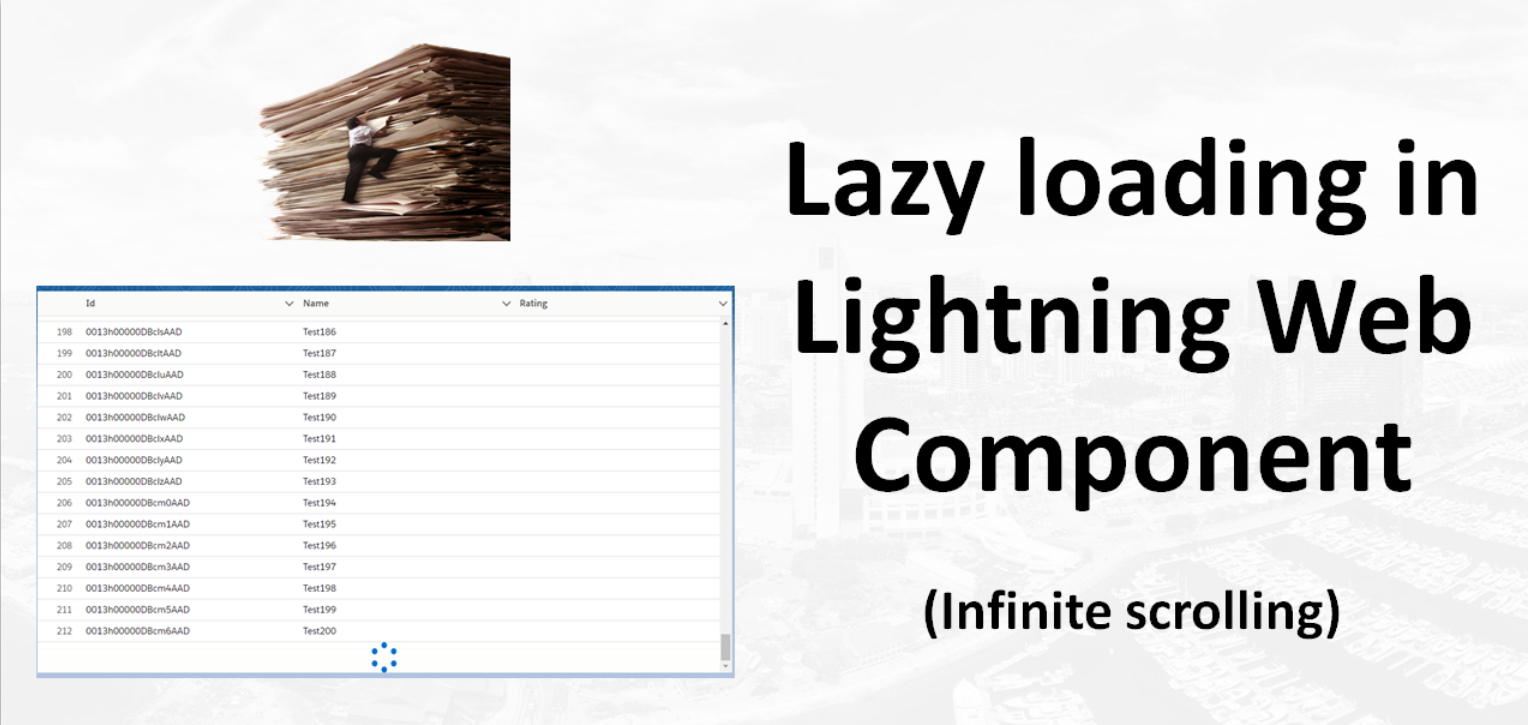
 In this post we will talk about How to implement Infinity or lazy loading in Lightning Web Component using Lightning Datatable. Lazy loading helps you to load the data only when it is required. Infinite scrolling (enable-infinite-loading) enables you to load a subset of data and then load more data when users scroll to the end of the table.

In this post we will learn about lightning datatable attributes enable-infinite-loading and load more offset.
  • enable-infinite-loading : You can load a subset of data and then display more
    when users scroll to the end of the table. Use with the onloadmore event handler to retrieve more data
  • load-more-offset : Determines when to trigger infinite loading based on how many pixels the table's scroll position is from the bottom of the table. The default is 20
  •  onloadmore : The action triggered when infinite loading loads more data
In below image you can check the demo for Lightning Data Table With Lazy Loading. As we load data partially and once the user scrolls down at the end then we load the next set of data. So it is very responsive.


Lets see how we can implement the same.

Step 1) Apex Class with offSet


LazyLoadingController


public with sharing class LazyLoadingController {

    @AuraEnabled(cacheable=true)
    public static List<Account> getAccounts(Integer limitSize, Integer offset){
        List<Account> accountList = [SELECT Id,Name,Rating
                                     FROM Account
                                     ORDER BY CreatedDate
                                     LIMIT :limitSize
                                     OFFSET :offset
                                     ];
        return accountList;
    }
}
We will call same apex class from lightning web component.

Step 2) Lightning web component with Datatable


Create lightning web component in your sandbox or developer org. If you new please check this post how to create lightning web component in non-scratch org.

lazyLoadingLWCDemo.html

<template>
    <div style="height:500px">
    <lightning-datatable key-field="Id"
            data={accounts}
            columns={columns}
            enable-infinite-loading
            onloadmore={loadMoreData}
            hide-checkbox-column="true"
            show-row-number-column="true">
    </lightning-datatable> 
</div>
</template>
To enable infinite scrolling, specify enable-infinite-loading and provide an event handler using onloadmore.


lazyLoadingLWCDemo.js

import { LightningElement, track, wire } from 'lwc';
import getAccounts from '@salesforce/apex/LazyLoadingController.getAccounts';

const columns = [
    { label: 'Id', fieldName: 'Id', type: 'text' },
    { label: 'Name', fieldName: 'Name', type: 'text'},
    { label: 'Rating', fieldName: 'Rating', type: 'text'}
  
];

export default class LazyLoadingLWCDemo extends LightningElement {
    accounts=[];
    error;
    columns = columns;
    rowLimit =25;
    rowOffSet=0;
  
    connectedCallback() {
        this.loadData();
    }

    loadData(){
        return  getAccounts({ limitSize: this.rowLimit , offset : this.rowOffSet })
        .then(result => {
            let updatedRecords = [...this.accounts, ...result];
            this.accounts = updatedRecords;
            this.error = undefined;
        })
        .catch(error => {
            this.error = error;
            this.accounts = undefined;
        });
    }

    loadMoreData(event) {
        const currentRecord = this.accounts;
        const { target } = event;
        target.isLoading = true;

        this.rowOffSet = this.rowOffSet + this.rowLimit;
        this.loadData()
            .then(()=> {
                target.isLoading = false;
            });   
    }


}
We create connectedCallback function to load the initial data and then we are useing loadmoreData function to load more record from Apex base on offset. The onloadmore event handler retrieves more data when you scroll to the bottom of the table until there are no more data to load. To display a spinner while data is being loaded, set the isLoading property to true


lazyLoadingLWCDemo.js-meta.xml
<?xml version="1.0" encoding="UTF-8"?>
<LightningComponentBundle xmlns="http://soap.sforce.com/2006/04/metadata">
    <apiVersion>48.0</apiVersion>
    <isExposed>true</isExposed>
    <targets>
        <target>lightning__AppPage</target>
        <target>lightning__RecordPage</target>
        <target>lightning__HomePage</target>
    </targets>  
</LightningComponentBundle>


Reference blog
  1. Datatable
  2. OffSet

Further Learning
  1. Lightning datatable In Lightning Web Components
  2. Lightning Datatable Sorting in Lightning Web Components


Please share your feedback and let me know if this code can be improve.

Friday, 3 January 2020

Lightning Datatable Sorting in Lightning Web Components

Lightning Datatable Sorting in Lightning Web Components
Last time we talk about Lightning Datatable in Lightning Web Components (LWC). In this post we will talk about lightning datatable example with sorting. We know lightning-datatable component displays in tabular data and each column can be displayed based on the data type. We can also achieve the column sorting with the help of onsort attribute in datatable. I hope VsCode is already setup on you machine and you know how to create Lightning Web Component. If not please check our Get started with Salesforce lightning web components post.

Lightning-datatable

Lightning datatable provides an onsort attribute which allow us to implement the sorting in lightning datatable. To enable the sorting on row you need to set sortable to true for the column and set sorted-By to match the fieldName attribute on the column. 

Use onsort event handler to update the table with the new column index and sort direction. The sort event returns the following parameter.
  1. fieldName    The fieldName that controls the sorting.
  2. sortDirection    The sorting direction. Valid options include 'asc' and 'desc'.
 You can implement sorting locally or via apex call.

Local Sorting:

We mostly implement this type of sorting when we know data elements in lightning datatable is small and limited.

1) Create Apex Class. 

To select certain contacts using SOQL, use an Apex method. Check this post to learn about how to Call Apex Methods in LWC.

LWCDataTableSortingExample:
public with sharing class LWCDataTableSortingExample {
    @AuraEnabled(Cacheable=true)
    public static List <Contact> getContacts() {
        List<Contact> contList = [ SELECT Id, FirstName, LastName, Phone, Email
                                   FROM Contact
                                   LIMIT 10 ];
        return contList;
    }     
}

2) Create Lightning web component.

dataTableSortingLWC.html
<template>
    <lightning-card title="Data Sorting in Lightning Datatable in LWC" icon-name="standard:contact" >
        <br/>
        <div style="width: auto;">
            <template if:true={data}>
                <lightning-datatable data={data}
                                     columns={columns}
                                     key-field="id"
                                     sorted-by={sortBy}
                                     sorted-direction={sortDirection}
                                     onsort={doSorting}
                                     hide-checkbox-column="true"></lightning-datatable>
            </template>
        </div>
    </lightning-card>
</template>


dataTableSortingLWC.js
import {LightningElement, wire, track} from 'lwc';
import getContacts from '@salesforce/apex/LWCDataTableSortingExample.getContacts';

// datatable columns with row actions. Set sortable = true
const columns = [ { label: 'FirstName', fieldName: 'FirstName', sortable: "true"},
                  { label: 'LastName', fieldName: 'LastName', sortable: "true"},
                  { label: 'Phone', fieldName: 'Phone', type: 'phone', sortable: "true"},
                  { label: 'Email', fieldName: 'Email', type: 'email', sortable: "true" },];

export default class DataTableSortingLWC extends LightningElement {
    @track data;
    @track columns = columns;
    @track sortBy;
    @track sortDirection;
  
    @wire(getContacts)
    contacts(result) {
        if (result.data) {
            this.data = result.data;
            this.error = undefined;
        } else if (result.error) {
            this.error = result.error;
            this.data = undefined;
        }
    }

    doSorting(event) {
        this.sortBy = event.detail.fieldName;
        this.sortDirection = event.detail.sortDirection;
        this.sortData(this.sortBy, this.sortDirection);
    }

    sortData(fieldname, direction) {
        let parseData = JSON.parse(JSON.stringify(this.data));
        // Return the value stored in the field
        let keyValue = (a) => {
            return a[fieldname];
        };
        // cheking reverse direction
        let isReverse = direction === 'asc' ? 1: -1;
        // sorting data
        parseData.sort((x, y) => {
            x = keyValue(x) ? keyValue(x) : ''; // handling null values
            y = keyValue(y) ? keyValue(y) : '';
            // sorting values based on direction
            return isReverse * ((x > y) - (y > x));
        });
        this.data = parseData;
    }      
}

dataTableSortingLWC.js-meta.xml
<?xml version="1.0" encoding="UTF-8"?>
<LightningComponentBundle xmlns="http://soap.sforce.com/2006/04/metadata" fqn="dataTableSortingLWC">
    <apiVersion>46.0</apiVersion>
    <isExposed>true</isExposed>
    <targets>
        <target>lightning__AppPage</target>
        <target>lightning__RecordPage</target>
        <target>lightning__HomePage</target>
    </targets>
</LightningComponentBundle>


Sorting by Apex Call:

We also have another way of data sorting with Apex class.

1) Create Apex Class. 

LWCDataTableSortingExample:
public with sharing class LWCDataTableSortingExample {
    @AuraEnabled(Cacheable=true)
    public static List <Contact> getContacts(String field, String sortOrder) {
        String query;
        query  = 'SELECT Id, FirstName, LastName, Phone, Email FROM Contact';
        if(field != null && sortOrder !=null){
            query += ' ORDER BY '+field+' '+sortOrder;
        }
        return Database.query(query);
    }
}

2) Create Lightning web component.

dataTableSortingLWC.html
<template>
    <lightning-card title="Data Sorting by Apex" icon-name="standard:contact" >
        <br/>
        <div style="width: auto;">
            <template if:true={data}>
                <lightning-datatable data={data}
                                     columns={columns}
                                     key-field="id"
                                     sorted-by={sortBy}
                                     sorted-direction={sortDirection}
                                     onsort={doSorting}
                                     hide-checkbox-column="true"></lightning-datatable>
            </template>
        </div>
    </lightning-card>
</template>

dataTableSortingLWC.js
import {LightningElement, wire, track} from 'lwc';
import getContacts from '@salesforce/apex/LWCDataTableSortingExample.getContacts';

// datatable columns with row actions
const columns = [ { label: 'FirstName', fieldName: 'FirstName', sortable: "true"},
                  { label: 'LastName', fieldName: 'LastName', sortable: "true"},
                  { label: 'Phone', fieldName: 'Phone', type: 'phone', sortable: "true"},
                  { label: 'Email', fieldName: 'Email', type: 'email', sortable: "true" },];

export default class DataTableSortingLWC extends LightningElement {
    // reactive variable
    @track data;
    @track columns = columns;
    @track sortBy='FirstName'
    @track sortDirection='asc';
  
    // retrieving the data using wire service
    @wire(getContacts,{field : '$sortBy',sortOrder : '$sortDirection'})
    contacts(result) {
        if (result.data) {
            this.data = result.data;
            this.error = undefined;
        } else if (result.error) {
            this.error = result.error;
            this.data = undefined;
        }
    }

    doSorting(event) {
        // calling sortdata function to sort the data based on direction and selected field
        this.sortBy = event.detail.fieldName;
        this.sortDirection = event.detail.sortDirection;
        this.sortData(this.sortBy, this.sortDirection);
    }

    sortData(fieldname, direction) {
        let parseData = JSON.parse(JSON.stringify(this.data));
        // Return the value stored in the field
        let keyValue = (a) => {
            return a[fieldname];
        };
        // cheking reverse direction
        let isReverse = direction === 'asc' ? 1: -1;
        // sorting data
        parseData.sort((x, y) => {
            x = keyValue(x) ? keyValue(x) : ''; // handling null values
            y = keyValue(y) ? keyValue(y) : '';
            // sorting values based on direction
            return isReverse * ((x > y) - (y > x));
        });

        // set the sorted data to data table data
        this.data = parseData;
    }      
}


Please check below post on Lightning Web Components:-

Thanks
Amit Chaudhary

Thursday, 17 October 2019

Lightning datatable In Lightning Web Components | lightning datatable inline edit

Welcome back, In this post we are going to create another lightning web component (LWC), Where we can search contact records and will display result using lightning-datatable lwc component. Lightning datatable tag is same as lightning:datatable tag in aura. In this lightning Datatable example we will also talk about lightning datatable inline edit.

lighning-datatable syntax:-
                    <lightning-datatable key-field="Id" 
                                            data={contacts} 
                                            columns={columns} 
                                            hide-checkbox-column="true" 
                                            show-row-number-column="true"
                                            > 
                    </lightning-datatable> 
  • If you want to hide the checkbox from table then add "hide-checkbox-column"
  • If you want to show row number then please add "show-row-number-column".
Let's see how we can create custom record search functionality in lightning web components. I hope VsCode is already setup on you machine and you know how to create Lightning Web Component. If not please check this post.

1) Create Apex Class

public with sharing class LWCDataTableExample {
    @AuraEnabled(Cacheable=true)
    public static List <Contact> getContacts(String strLastName) {
        String strLastNameLike = '%'+strLastName+'%';
        List<Contact> contList = [SELECT Id,FirstName,LastName,Account.Name
                                   FROM Contact
                                   Where LastName like :strLastNameLike
                                   LIMIT 10];
        return contList;
    }   
}

This apex class we will call from Lightning web components. If you want to learn more about how to call apex class from lightning web components then please check this post.

2) Create Lightning Web Components.

lwcLightningDataTableDemo.html
<template>
    <lightning-card title = "Search Contacts" icon-name = "custom:custom63"> 
        <div class = "slds-m-around_medium"> 
            <lightning-input type = "search" onchange = {handleKeyChange} class = "slds-m-bottom_small" label = "Search" >
            </lightning-input> 
            <template if:true = {contacts}> 
                <div style="height: 300px;"> 
                    <lightning-datatable key-field="Id" 
                                            data={contacts} 
                                            columns={columns} 
                                            hide-checkbox-column="true" 
                                            show-row-number-column="true"> 
                    </lightning-datatable> 
                </div>                  
            </template>
            <template if:true = {error}> 
                {error}> 
            </template> 
        </div> 
    </lightning-card> 
</template>


lwcLightningDataTableDemo.js
import { LightningElement,track } from 'lwc';
import getContacts from '@salesforce/apex/LWCDataTableExample.getContacts';

const columns = [ 
    { label: 'Id', fieldName: 'Id' }, 
    { label: 'First Name', fieldName: 'FirstName' }, 
    { label: 'Last Name', fieldName: 'LastName' }
];

export default class LwcLightningDataTableDemo extends LightningElement {
    @track contacts;
    @track error; 
    @track columns = columns;
   
    handleKeyChange( event ) { 
        const strLastName = event.target.value; 
        if ( strLastName ) { 
            getContacts( { strLastName } )   
            .then(result => { 
                this.contacts = result; 
                console.log('I am here',this.contacts);
               // console.log(JSON.stringify(result, null, '\t'));
   
            }) 
            .catch(error => { 
                this.error = error; 
            }); 
        } else 
        this.contacts = undefined; 
    }
}

lwcLightningDataTableDemo.js-meta.xml
<?xml version="1.0" encoding="UTF-8"?>
<LightningComponentBundle xmlns="http://soap.sforce.com/2006/04/metadata" fqn="lwcLightningDataTableDemo">
    <apiVersion>47.0</apiVersion>
    <isExposed>true</isExposed>
    <targets>
        <target>lightning__AppPage</target>
        <target>lightning__RecordPage</target>
        <target>lightning__HomePage</target>
        <target>lightning__Tab</target>
    </targets>

</LightningComponentBundle>

NOTE:- Now from Winter 20 release we can Add Lightning Web Components as Custom Tabs for that we need to add lightning__Tab target to the component’s configuration file.

Now Your page will look like this


Lightning datatable inline edit


Let's see how we can do inline Edit
  • For inline editing we can use the uiRecordAPI. For that we need to import the "lightning/uiRecordApi"
  • We also need to add "onsave={handleSave}" and "draft-values={draftValues}"on lightning-datatable and on column we need to add enable "editable: true".
  • Then we need to add handler Save method.

Let's see how our code will look like:


lwcLightningDataTableDemo.html
<template>
    <lightning-card title = "Search Contacts" icon-name = "custom:custom63"> 
        <div class = "slds-m-around_medium"> 
            <lightning-input type = "search" onchange = {handleKeyChange} class = "slds-m-bottom_small" label = "Search" >
            </lightning-input> 
            <template if:true = {contacts}> 
                <div style="height: 300px;"> 
                    <lightning-datatable key-field="Id" 
                                            data={contacts} 
                                            columns={columns} 
                                            hide-checkbox-column="true" 
                                            show-row-number-column="true"
                                            onsave={handleSave}
                                            draft-values={draftValues}
                                            > 
                    </lightning-datatable> 
                </div>                  
            </template>
            <template if:true = {error}> 
                {error}> 
            </template> 
        </div> 
    </lightning-card> 
</template>


lwcLightningDataTableDemo.js
import { LightningElement,track } from 'lwc';
import getContacts from '@salesforce/apex/LWCDataTableExample.getContacts';

import { updateRecord } from 'lightning/uiRecordApi';
import { refreshApex } from '@salesforce/apex';
import { ShowToastEvent } from 'lightning/platformShowToastEvent';


const columns = [ 
    { label: 'Id', fieldName: 'Id' }, 
    { label: 'First Name', fieldName: 'FirstName', editable: true  }, 
    { label: 'Last Name', fieldName: 'LastName', editable: true  }
];

export default class LwcLightningDataTableDemo extends LightningElement {
    @track contacts;
    @track error; 
    @track columns = columns;
    @track draftValues = [];
    handleKeyChange( event ) { 
        const strLastName = event.target.value; 
        if ( strLastName ) { 
            getContacts( { strLastName } )   
            .then(result => { 
                this.contacts = result; 
                // console.log('I am here',this.contacts);
                // console.log(JSON.stringify(result, null, '\t'));
            }) 
            .catch(error => { 
                this.error = error; 
            }); 
        } else 
        this.contacts = undefined; 
    }

    handleSave(event) {
        const recordInputs =  event.detail.draftValues.slice().map(draft => {
            const fields = Object.assign({}, draft);
            return { fields };
        });
   
        const promises = recordInputs.map(recordInput => updateRecord(recordInput));
       
        Promise.all(promises).then(contacts => {
            this.dispatchEvent(
                new ShowToastEvent({
                    title: 'Success',
                    message: 'All Contacts updated',
                    variant: 'success'
                })
            );
             // Clear all draft values
             this.draftValues = [];
   
             // Display fresh data in the datatable
             return refreshApex(this.contact);
        }).catch(error => {
            // Handle error
        });
    }


}

Please check below post on Lightning Web Components:-

Check our YouTube Channel for more recording in Lightning Web Components.

Reference :-
1) https://developer.salesforce.com/docs/component-library/bundle/lightning-datatable/example
2) https://developer.salesforce.com/docs/component-library/documentation/lwc/data_table_inline_edit


Please share your feedback.