Showing posts with label Email. Show all posts

Monday, 1 May 2017

How to create Visualforce Email Templates (Step by Step)

Visualforce Email Templates

We can also use Visualforce to create email templates. The advantage of using Visualforce over standard HTML email templates is that Visualforce offers you the power to perform advanced operations on data that's sent to a recipient

  • Visualforce email template should be within a single <messaging:emailTemplate> tag.
  • The <messaging:emailTemplate> tag should contain either a single <messaging:htmlEmailBody> or <messaging:plainTextEmailBody> tag.
  • Some standard Visualforce components are not available for use within <messaging:emailTemplate>. For Example <apex:detail>, <apex:pageBlock> and all related pageBlock components, and all input components such as <apex:form>.
  • All <apex:component> tags used within a Visualforce email template should have an access level of global.
  • The max size of a Visualforce email template is 1MB.
  • You can’t send a mass email using a Visualforce email template.

NOTE:-

1) The <messaging:htmlEmailBody> component can include a mix of Visualforce markup and HTML.
2)The <messaging:plainTextEmailBody> component can only include Visualforce markup and plain text

Step by Step process:-

Step 1:-  Click on Email Template from start menu.


Step 2 :-  Then click on new "New Template" button and select "VisualForce" radio button


Step 3 :- Then Enter all below detail for email template


Step 4 :-  Then click on your "Edit Template" button to edit VF page.


Visual force Email Template code :- 
<messaging:emailTemplate 
subject="Case report for Account: {!relatedTo.name}" 
recipientType="Contact" 
relatedToType="Account">

    <messaging:htmlEmailBody >
        <html>
        <body>
            <p>Dear {!recipient.name},</p>
            <table border="0" >
                <tr>
                    <th>Case Number</th><th>Origin</th>
                    <th>Creator Email</th><th>Status</th>
                </tr>
                <apex:repeat var="cx" value="{!relatedTo.Cases}">
                <tr>
                    <td><a href = 
                        "https://na1.salesforce.com/{!cx.id}">{!cx.CaseNumber}
                    </a></td>
                    <td>{!cx.Contact.email}</td>
                </tr>
                </apex:repeat> 
            </table>
        </body>
        </html>
    </messaging:htmlEmailBody>

</messaging:emailTemplate>

NOTE:- 
In Above example First we created the top level element <messaging:emailTemplate>. Using attributes we declare two different VF standardControllers used by this email template. First, the recipientType also called the WhoID and 2nd the relatedToType also refered to as the whatID in regular email template. We can also set a replyTo address, so that anyone replying to the email can reply back to this address


Using Custom Controllers within Visualforce Email Templates


Visualforce email templates can leverage custom controllers to render highly customized content. To do so, include a custom component in a Visualforce email template that uses that custom controller


<messaging:emailTemplate subject="Apex Code" recipientType="Contact" relatedToType="Opportunity">
 <messaging:htmlEmailBody>
  <c:cutomComponentName/>
 </messaging:htmlEmailBody>
</messaging:emailTemplate>

NOTE:- Sharing settings are applied if your email templates use a standard controller. If your organization-wide default (OWD) for the user object is Private and you need to access user information in your Visualforce email template, you can use a custom component or custom controller with the without sharing keywords

Thanks,
Amit Chaudhary

Wednesday, 14 December 2016

Test Class for Email Service | Test class for InboundEmail


In last month post we created the "Apex Email Service" . Now in this post we will get to know how to write the test class for Apex Email Service.


global class EmailServiceExample implements Messaging.InboundEmailHandler 
{
 global Messaging.InboundEmailResult handleInboundEmail(Messaging.inboundEmail email,Messaging.InboundEnvelope env)
 {
  // Create an InboundEmailResult object for returning the result of the Apex Email Service
  Messaging.InboundEmailResult result = new Messaging.InboundEmailResult();
  try 
  {
   List<Contact> contList= [SELECT Id, Name, Email FROM Contact WHERE Email = :email.fromAddress LIMIT 1];
   Task taskObj = new Task();
   taskObj.Description =  email.plainTextBody;
   taskObj.Priority = 'Normal';
   taskObj.Status = 'Inbound Email';
   taskObj.Subject = email.subject;
   taskObj.IsReminderSet = true;
   taskObj.ReminderDateTime = System.now()+1;
   if(contList.size()>0)
   {
    taskObj.WhoId =  contList[0].Id;
   }    
   insert taskObj;    
  }
  catch (Exception e) 
  {
     System.debug('Exception : ' + e);
  }
  result.success = true;
  return result;
 }
}


Test Class

@isTest
private class EmailServiceExampleTest
{
    static testMethod void testUnsubscribe() 
    {
       // Create a new email and envelope object.    
       
       Messaging.InboundEmail email = new Messaging.InboundEmail() ;
       Messaging.InboundEnvelope env    = new Messaging.InboundEnvelope();
    
       // Create Test record.
       Contact cont = new Contact(firstName='john', lastName='smith', Email='test@test.com', HasOptedOutOfEmail=false);
       insert cont ;
       
       // Test with the subject that matches the unsubscribe statement.
       email.subject = 'Test Contact Email';
       //email.plainTextBody = 'Test Contact Email';
       env.fromAddress = 'test@test.com';        EmailServiceExample obj= new EmailServiceExample();        obj.handleInboundEmail(email, env );                                  }       }


 Let us know if this will help you

Thanks,
Amit Chaudhary


Tuesday, 15 November 2016

Apex Email Service | InboundEmail Object | Messaging.InboundEmailHandler in salesforce


Email Service

Email service is special processes that use Apex classes to process incoming email messages. When you set up an email service, we need to generate a special email address in which salesforce will receive your emails. For same we need to create one apex class to implement Messaging.InboundEmailHandler interface . The email services will then invoke a handleInboundEmail method on the Apex class whenever an email is received on the email address.


NOTE:- Before creating email services we need to create Apex classes that implement the Messaging.InboundEmailHandler interface.


STEP 1:- Create one Apex class with Messaging.InboundEmailHandler

global class EmailServiceExample implements Messaging.InboundEmailHandler 
{
 global Messaging.InboundEmailResult handleInboundEmail(Messaging.inboundEmail email,Messaging.InboundEnvelope env)
 {
  // Create an InboundEmailResult object for returning the result of the Apex Email Service
  Messaging.InboundEmailResult result = new Messaging.InboundEmailResult();
  try 
  {
   List<Contact> contList= [SELECT Id, Name, Email FROM Contact WHERE Email = :email.fromAddress LIMIT 1];
   Task taskObj = new Task();
   taskObj.Description =  email.plainTextBody;
   taskObj.Priority = 'Normal';
   taskObj.Status = 'Inbound Email';
   taskObj.Subject = email.subject;
   taskObj.IsReminderSet = true;
   taskObj.ReminderDateTime = System.now()+1;
   if(contList.size()>0)
   {
    taskObj.WhoId =  contList[0].Id;
   }    
   insert taskObj;    
  }
  catch (Exception e) 
  {
     System.debug('Exception : ' + e);
  }
  result.success = true;
  return result;
 }
}


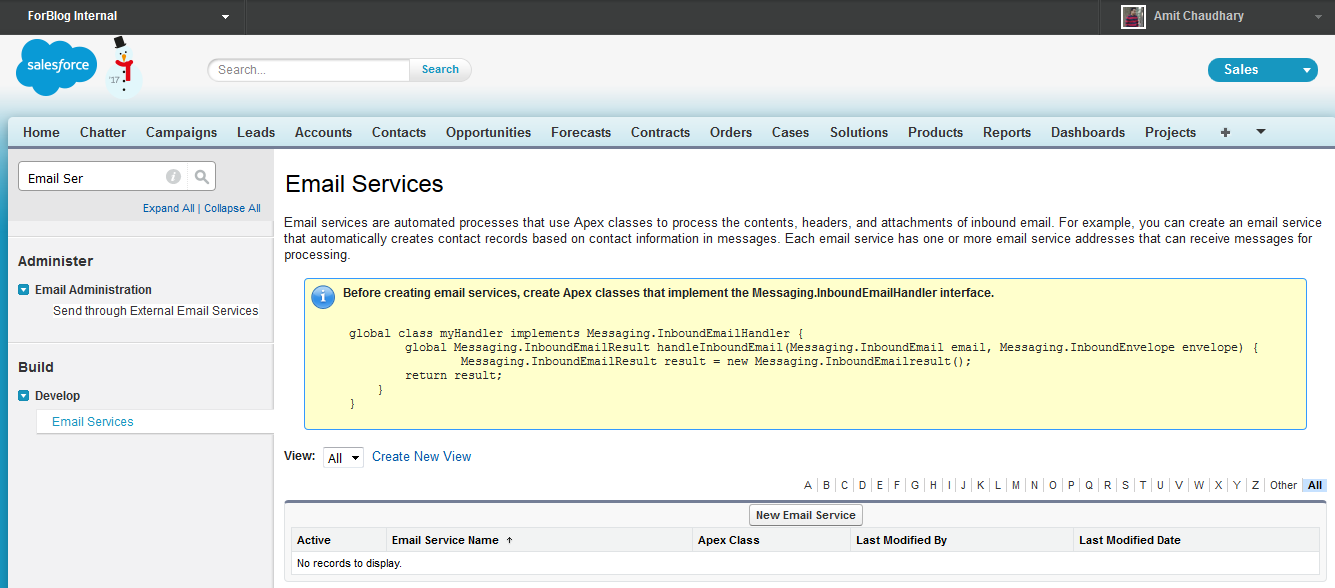
STEP 2 :- Setup Email service

1) Go to Setup -->Develop->Email Services


2) Click on New Email Service
3) Then complete all below information


4) then click on SAVE button.

STEP 3 :- Generate an email address

1) Click on "New Email Address" button

2) Then add all below detail

 3) Then click on SAVE button.

 You will see a new email address that salesforce will monitor, emails received on this address will trigger the associated Apex code.


STEP 4 :- Testing of email service

1) Create one contact with sender email address.
2) Then send email from given email domain to same email address.


Please check next post for Apex Email Service Test class

Thanks,
Amit Chaudhary


Sunday, 8 November 2015

SingleEmailMessage Vs MassEmailMessage | Send Email by Apex


SingleEmailMessage Vs MassEmailMessage


SINGLE EMAILMASS EMAIL
Multiple recipients?YesYes
Personalized body?Yes (single body only)Yes
Special permission needed?NoYes, has to be enabled
Merge fields?YesYes
Personalized merge fields?Yes (only one record at a time)Yes
Templates?YesYes
Template possibilities?Text/HTML/Visualforce/Custom TemplatesText/HTML/Custom Template


SingleEmailMessage:

Single emails are like regular individual emails that may go to one or more addresses (to/cc/bcc), but each of these emails has the same body

Messaging.SingleEmailMessage message = new Messaging.SingleEmailMessage();
message.toAddresses = new String[] { 'abc@gmail.com', 'xyz@gmail.com' };
message.optOutPolicy = 'FILTER';
message.subject = 'Opt Out Test Message';
message.plainTextBody = 'This is the message body.';
Messaging.SingleEmailMessage[] messages =   new List<Messaging.SingleEmailMessage> {message};
Messaging.SendEmailResult[] results = Messaging.sendEmail(messages);

if (results[0].success) 
{
    System.debug('The email was sent successfully.');
} else 
{
    System.debug('The email failed to send: ' + results[0].errors[0].message);
}
Please check below post to see all other method
https://developer.salesforce.com/docs/atlas.en-us.apexcode.meta/apexcode/apex_classes_email_outbound_single.htm 

 
MassEmailMessage:

Mass emails typically go to a large number of addresses (currently capped to 250 per email), with personalized message bodies.
public void SendEmail()
{
 List<contact> lstcon=[Select id from contact limit 2];
 List<Id> lstids= new List<Id>();
 for(Contact c:lstcon)
 {
  lstids.add(c.id);
 }
 EmailTemplate et=[Select id from EmailTemplate where name = 'EmailTemplatename' limit 1];
 
 Messaging.MassEmailMessage mail = new Messaging.MassEmailMessage();
 mail.setTargetObjectIds(lstIds);
 mail.setSenderDisplayName('System Admin');
 mail.setTemplateId(et.id);
 Messaging.sendEmail(new Messaging.MassEmailMessage[] { mail });
}
 Please check below post to see all other method

https://developer.salesforce.com/docs/atlas.en-us.apexcode.meta/apexcode/apex_classes_email_outbound_mass.htm 

 
Related link
https://developer.salesforce.com/page/An_Introduction_To_Email_Services_on_Force.com 
 
Please let us know if this will help you

Thanks
Amit Chaudhary


Default from address while sending emails | Controlling 'From Address' in salesforce | Salesforce Org Wide Email Address


If you want to control the From Email address in salesforce then you can control this with "Organization-Wide Email Addresses".
An organization-wide email address associates a single email address to a user profile. Each user in the profile can send email using this address. Users will share the same display name and email address

Step 1:-  Setup "Organization-Wide Email Addresses"

1. Navigate Setup -> Email Administration ->  Organization-Wide Email Addresses

2. Click on Add button.

3. Enter email Id and display name of sender.
4. In order to complete this process you need to get verified email id you are putting here


Step 2:- Fetch "Org Wide Email Address" in code like below code.


public class EmailHelper 
{
 public static void sendEmail() 
 {
  Messaging.SingleEmailMessage mail = new Messaging.SingleEmailMessage();  
  string body = 'Demo Body ';
  String[] toAddresses = new String[] {'abc@gmail.com'}; 
  mail.setToAddresses(toAddresses);
  mail.setSubject('Test Subject');  
  mail.setSaveAsActivity(false);  
  for(OrgWideEmailAddress owa : [select id, Address, DisplayName from OrgWideEmailAddress]) 
  {
   if(owa.DisplayName.contains('System Admin'))
   { 
    mail.setOrgWideEmailAddressId(owa.id); 
   } 
  }
  mail.setHtmlBody(body);  
  Messaging.sendEmail(new Messaging.SingleEmailMessage[] { mail });
    }  
}


Some Use Full Link :-
http://salesforce.stackexchange.com/questions/5169/whats-the-advantage-of-using-massemailmessage-instead-of-multiple-singleemailme/5174#5174
http://developer.force.com/cookbook/recipe/creating-email-templates-and-automatically-sending-emails

Please let us know if this will help you

Thanks
Amit Chaudhary